
Building Intuitive Navigation Systems
How to structure information so users find what they need without thinking. We’ll cover information architecture and common patterns that work.
Why Navigation Matters More Than You Think
Good navigation is invisible. Users don’t notice it when it works—they only notice when it doesn’t. We’ve all been frustrated by a website where finding something feels like a treasure hunt. That’s what happens when navigation isn’t intuitive.
The thing is, building navigation isn’t just about arranging menu items. It’s about understanding how people think, what they’re looking for, and how they expect to find it. When you get this right, users accomplish their goals faster and feel more confident using your product.

The Core Principles of Intuitive Navigation
Navigation should follow a few fundamental rules. First, consistency matters—users should know where they are at all times. If the navigation changes between pages, you’ve already lost them. Second, it should require minimal cognitive effort. Users shouldn’t have to think about where to click or what things mean.
We follow what’s called the “three-click rule” loosely. It’s not a strict law, but it guides us: most users should find what they need within three clicks. But honestly, it’s more about logical structure than counting clicks.
Real talk: The best navigation is the one users don’t notice. They come to your site, find what they want, and leave happy. That’s the win.
Common Navigation Patterns That Work
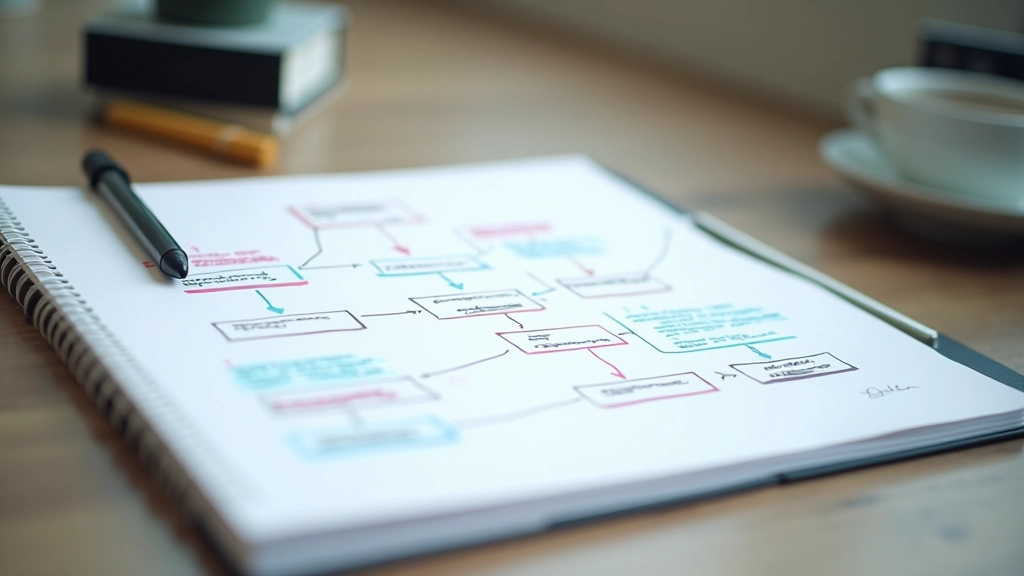
Over the years, certain navigation patterns have emerged as winners. These aren’t trendy—they’re proven because they match how people expect things to work.
Horizontal Top Navigation
The standard at the top of the page. Main categories across, with dropdowns for subcategories. Works well for most websites because it’s familiar and doesn’t take up much vertical space.
Sidebar Navigation
Great for content-heavy sites or applications. Gives you more room for menu items and subcategories. Users can see the full structure at a glance, which reduces guessing.
Breadcrumb Trail
Shows users where they are in the hierarchy. “Home > Products > Accessories” tells you exactly where you are and how to go back. Especially useful for sites with deep category structures.
Tab Navigation
When you’ve got a few main sections that are equal in importance. Think of browser tabs or dashboard views. Tabs work best when there are 3-7 options—more than that gets overwhelming.
Mobile Hamburger Menu
Hidden menu that slides in from the side. On mobile screens where space is tight, this saves room. Just make sure the icon is clear—a lot of users still don’t recognize it instantly.
Sticky Navigation
Navigation that stays visible as users scroll. Keeps primary options always accessible. Use this thoughtfully though—it takes up screen space and can feel pushy if overused.

Information Architecture: The Foundation
Before you design a single button, you need to organize your content. That’s information architecture (IA). It’s about deciding what categories exist, how they relate to each other, and where items belong.
Here’s the process we follow: First, gather all your content and write it down. Every page, every feature, every piece of information. Then organize it into logical groups. You’re looking for patterns—what naturally belongs together?
Use card sorting with actual users. Give them sticky notes with items from your site and ask them to group things the way they’d expect them organized. You’ll be surprised—sometimes our assumptions are way off. Doing this with 8-12 real users reveals patterns that are worth gold.
Labels Matter: Naming Your Categories
This is where designers trip up. We get clever with category names. We use jargon. We try to be cute. And then users can’t find anything.
Use words your users actually use. If you’re building an e-commerce site for car parts, don’t call the section “Automotive Components.” Call it “Car Parts.” Test your labels with actual users—ask them what they’d click to find specific items. If they can’t guess correctly at least 80% of the time, your label needs work.
Avoid abbreviations. Skip the inside jokes. Be specific—”Services” is vague, but “Design Services” tells users exactly what they’ll find. The goal is zero confusion, and that only happens with clarity.

Testing Your Navigation Before Launch
You can’t just build it and hope it works. Real users need to test it, and you need to watch them use it. Here’s what we do:
Task-Based Testing
Give users specific tasks. “Find the return policy” or “Look up shipping costs.” Don’t tell them where things are—let them search naturally. Watch where they click, how long it takes, whether they find it.
Five-User Rule
You don’t need dozens of users to find problems. Five users will reveal most of the major issues. Do this early, before you’re deeply invested in a design.
Iterate Based on Feedback
If three out of five users struggle with something, that’s a real problem. Adjust your labels, restructure your categories, or reconsider your hierarchy. Then test again with fresh users.

Key Takeaways
Building intuitive navigation comes down to a few things: understand how your users think, organize your content logically, use clear labels, and test with real people. Don’t assume what makes sense to you makes sense to them.
The best navigation systems are built on research and testing, not guesses. Spend time with your users. Watch them navigate your site. Listen to their feedback. That’s where the real improvements come from.
You’ll know you’ve succeeded when users stop thinking about navigation and just find what they need. That’s the goal—invisibility through clarity.
Educational Note: This article provides general guidance on navigation design principles and best practices. Every project is unique—your specific navigation structure should be based on your users, your content, and your business goals. Test with your actual audience before launching to ensure your navigation meets their needs.
Related Articles

Understanding User Research Before You Design
Why talking to actual users changes everything. Learn the methods that reveal what people really need.
Creating a Design System That Actually Gets Used
Stop recreating buttons every project. Learn how to build a reusable design system that teams actually follow.
Accessibility Isn’t Optional—It’s Essential Design
Making interfaces work for everyone: color contrast, keyboard navigation, screen reader support, and more.